


As LED display technology engineers, we understand that issues like screen flickering, partial blackout, and screen malfunction can directly impact your business operations and ROI. This guide focuses on essential issues such as power supply anomalies, signal transmission errors, and driver IC failures, providing a full troubleshooting process from quick self-checks to engineering-grade optimization — especially designed for overseas users’ scenarios and query habits.
1. Core Fault Logic: 3 Stages to Pinpoint the Root Cause
The essence of LED display faults can be categorized into three main areas: Power Supply, Signal Transmission, and Display Units. Each corresponds to distinct symptoms for quick localization:
| Fault Type | Common Causes | Typical Symptoms | Impact Level |
|---|---|---|---|
| Power Supply | Driver power instability (fluctuating voltage/current), faulty main PSU (AC input fluctuations) | Modules not lighting, periodic flickering, overall brightness fluctuation | Global / Partial |
| Signal Issue | Network/optical cable failure, faulty control cards (sender/receiver), configuration errors | Partial malfunction, no content update, full blackout, static noise | Global / Partial |
| Hardware | Module driver IC failure, LED bead short/dead, poor cooling | Horizontal/vertical stripes, isolated black dots, partial discoloration, auto shut-off | Local–risk of spreading |

LED Module Connection Diagram
2. Scenario-Based Troubleshooting: Symptom → Self-Check → Solution
2.1. Flickering Screen: Signal or Power Supply Are Main Culprits
Flicker is a classic sign of voltage/signal instability. Follow these steps — 80% of issues resolve quickly:
-
Regular periodic flicker: Use a multimeter to check driver power supply (DC 5V or 4.2V) output. Poor-quality sources fluctuate under load — directly replace with a reputable redundant PSU (e.g., Mean Well).
-
Local/single-cabinet flicker: Plug the flickering module into a nearby receiver card port. If flicker disappears, the original receiver card has failed — replace with the same model.
-
Full-screen random flicker: Check stability of AC mains voltage. Fluctuations exceeding ±10% require an industrial-grade stabilizer to prevent power supply overload.
2.2. No Light/Partial Blackout: Check Power Before Signal
Most cases stem from “power cut” or “signal loss”. Prioritized troubleshooting is more efficient:
-
One module/row off: Focus on module power/data ribbon cables. Reverse insertion or looseness is common — reseat and confirm secure locking.
-
Entire screen/single cabinet blackout: Check driver power supply indicator — if unlit, replace the power. If indicator is on but screen is out, it may be power overload protection: restart after disconnect, then check load.
-
Power indicator on, screen off: Swap the sender-to-receiver network cable. If unchanged, verify control card configuration (resolution, module count), and reload the config file.
2.3. Malfunction/Garbled Output/Color Error: Data or IC Issues
These are mostly data chain or unit faults — pinpoint quickly using “swap testing”:
-
Horizontal stripes/color errors: Swap the malfunctioning module with a normal one. If the fault moves, it’s the module driver IC or PCB; if not, check receiver card or data chain.
-
Partial color/brightness mismatch: Ensure the receiver card has correctly loaded (scan mode, driver IC type, etc.); parameter mismatch causes severe visual issues — reconfigure per display manual.

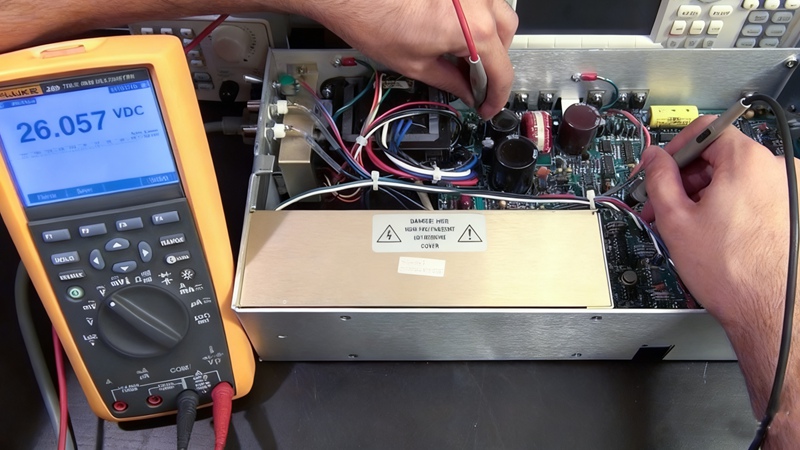
LED Module Repair
3. Engineering-Grade Optimization: High-Budget Projects ($500,000+)
For large projects, troubleshooting must address both rapid fixes and systematic risk reduction:
3.1. Procurement Prevention:
-
Power supply: Always use N+1 redundancy to avoid full-screen downtime.
-
Driver IC: Choose models with refresh rate ≥3840Hz for voltage/current fluctuation resilience.
-
Outdoor screens: Must be IP65/IP66-rated for challenging weather and environments.
3.2. On-Site Maintenance Toolkit:
-
Multimeter for voltage/current checks, spare modules/receiver cards for rapid swap testing.
-
Infrared thermometer to monitor chassis temperature; if over 60°C, clear vents or add fans.
-
Keep control card config files backed up for fast recovery from malfunction/garbled screen.
4. High-Frequency FAQ
Q1: Power supply indicator is on but no image — is the control system broken?
A: Usually a signal issue. Check network cable between sender/receiver (indicator lamp), and make sure the sender recognizes display resolution and receiver count.
Q2: Screen went black suddenly — what to check first?
A: Always check primary AC power supply first (circuit breaker trip, etc.), not the control system. After confirming AC, check sender card links/indicator before opening the device.
Q3: How to distinguish between module vs control system problem?
A: Use the “swap test”: Exchange a suspected module with a normal one. If the fault moves, it’s the module; if it stays, the receiver card/data cable is likely at fault.
Q4: Long-term, how to reduce failures?
A: Regular maintenance and proper use: Clean vent ports annually, avoid 100% brightness for long periods, use safe brightness as per brand specs. For outdoor screens, check seals quarterly.
Q5: Estimated part replacement cost?
A: Power supply: $50–$200/unit; receiver card: $100–$300; network cable: $10–$30/m; modules: $200–$500/panel; sender card: $300–$800. Branded products are more cost-effective/longer lasting.
5. Conclusion: Professional Support & Long-Term Warranty
LED displays are high-precision electronic systems. For complex faults (e.g., large-scale IC failure, mainboard short), always contact your vendor or a professional. We provide both high-quality LED products and 24/7 technical support and maintenance packages — from selection to installation to after-sales. For personalized troubleshooting or spare part recommendations, contact us for one-to-one service.
