


Planning a large-format all-in-one LED wall meeting room system? One that seamlessly handles live cameras, touch interaction, wireless sharing, and room audio? The hardware list is longer than most quotes reveal. This guide details every component you need, explains why each one is critical, and arms you with the exact questions to ask before signing. Getting the right BOM checklist from the start is the only way to avoid costly on-site rework and ensure your all-in-one LED wall meeting room works as promised.
Here’s the quick truth: A complete system requires six independent hardware layers. Confusing them is the single most common cause of project delays and budget overruns.
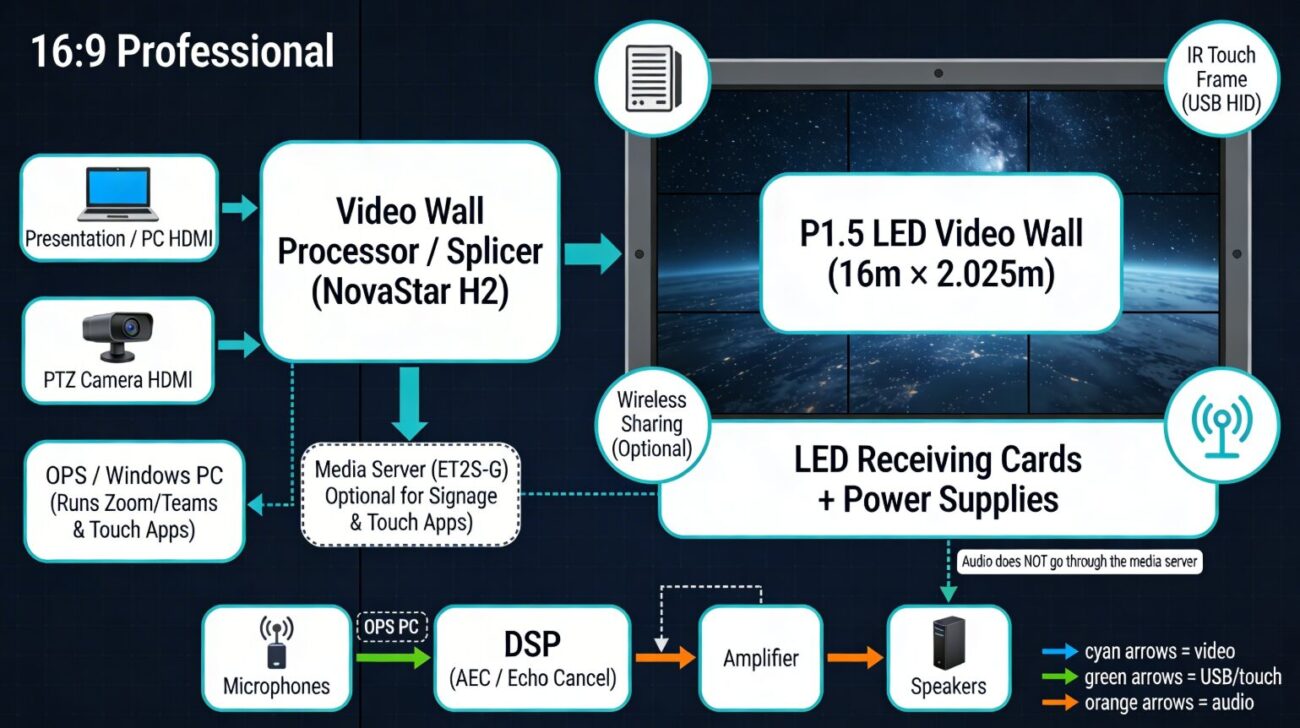
ll-in-One LED Wall in a Meeting Room
What “All-in-One” Actually Means for an LED Wall
Let’s clear up a major misconception. A consumer interactive flat panel (like a Samsung Flip) integrates display, touch, computer, and audio into one sealed box.
An LED video wall is fundamentally different. It’s a modular display surface, not a self-contained device. Achieving “all-in-one” functionality means you must assemble and integrate six separate hardware layers, each with a specific job.
Here’s a common, costly mistake: Assuming the LED controller handles everything, or that a single media server covers audio, video, touch, and camera all at once. It doesn’t. Each signal path needs its own dedicated device.
The 6-Layer LED Wall System Architecture
Before diving into the shopping list, understand the architecture. Every true all-in-one LED wall meeting room system is built on these six layers:
| Layer | Job | Key Device |
|---|---|---|
| 1. Display Surface | Emit light — the pixels on the wall | LED cabinet + receiving cards |
| 2. Video Processing | Scale, splice, and route signals to the wall | Video wall processor / splicer |
| 3. Content Source | Generate or play the content you see | Media server or OPS PC |
| 4. Touch Control | Detect finger position, send to PC | IR touch frame (USB to host PC) |
| 5. Audio | Mic input → processing → speaker output | Amplifier + DSP + microphones + speakers |
| 6. Camera | Capture room video, send as HDMI signal | PTZ camera → Processor HDMI input |
Full BOM Checklist: All-in-One LED Wall Meeting Room
Layer 1 — LED Display Surface
The display is your canvas. For a meeting room where people sit close and interact, P1.5mm pixel pitch is the practical minimum. A 16m × 2.025m wall at P1.5mm gives you a native canvas of about 10,667 × 1,350 pixels—plan your processor around this number.
| Component | Spec (P1.5 Example) | Notes |
|---|---|---|
| LED cabinet modules | P1.5mm fine-pitch, front-service preferred | Front-service is critical for wall-mounted installs. |
| Receiving cards | 1x per cabinet (e.g., XVisual A8s / MRV366) | Must match the sending card’s output capacity. |
| Power supplies | Redundant PSU strongly recommended | A single PSU failure can black out an entire cabinet. |
| Mounting structure | Steel frame, load-rated for cabinet weight | Factor in local seismic requirements for installs. |
| Cabinet data cables | Matching ribbon/network cables per brand | Order 20% spare — field damage is very common. |
Ask your supplier this: “What’s the total pixel count of my wall, and how many sending card ports does the processor need to drive it?”
Layer 2 — Video Wall Processor / Splicer
This is the brain. It takes all your inputs (PC, camera, etc.), scales and positions them across the LED canvas, and outputs the signal. For fine-pitch meeting room walls, the XVisual H2 is a current benchmark—it combines video processing and LED sending functions in one unit.
| Component | Recommended Model | Notes |
|---|---|---|
| Video wall processor | XVisual H2 | Supports HDMI, SDI, DP inputs; 4K@60Hz; multi-layer management. |
| HDMI input card | H_2xHDMI input card | Plug the camera’s HDMI directly into this card. |
| Sending card | H2 integrated LED sending card | Eliminates the need for a separate sending box. |
| Backup processor | Second H2 unit in hot-standby | Required for mission-critical executive boardrooms. |
记住这一点: The H2 handles video signal routing and LED output. It does not handle touch input, audio, or run applications like Zoom. Don’t spec a system expecting it to replace a PC.
Layer 3 — Content Source: Media Server or OPS PC
This device generates what you see: presentations, video, web browsers, Zoom/Teams. You have two paths, and choosing wrong is a top mistake.
Option A — XVisual ET2S-G Media Server
-
Best for: Fixed digital signage, scheduled content playback (lobbies, showrooms). -
The catch: It’s not a general-purpose computer. It cannot run Zoom, Teams, or touch-interactive apps.
Option B — OPS PC or Dedicated Windows Mini-PC
-
Best for: Meeting rooms. This is the correct choice if you need video calls, interactive whiteboards, or wireless screen sharing. -
关键连接: The IR touch frame (Layer 4) must connect to this device via USB.
| Component | ET2S-G Media Server | OPS / Windows PC |
|---|---|---|
| Content scheduling | ✅ Built-in software | ❌ Needs third-party software |
| Zoom / Teams support | ❌ | ✅ |
| IR touch input | ❌ | ✅ (via USB HID) |
| Screen casting | Limited | ✅ Full support |
| Best use case | Digital Signage | Meeting Room / Interactive |
Ask your supplier this: “Will users run Zoom, touch apps, or wireless casting? If yes, we need a Windows OPS PC—not a media server.”
Layer 4 — IR Touch Frame
This is a bezel-mounted infrared grid that detects finger position. Here’s the #1 confusion point: It sends coordinates to the host computer via USB, like a mouse. It does not connect to the LED processor or media server.
| Component | Spec | Notes |
|---|---|---|
| IR touch frame | Custom-sized to match your LED wall | Must be precisely measured for your cabinet layout. |
| USB cable | ≥5m shielded cable recommended | Avoid active USB extenders for runs over 5m. |
| Host PC | Windows 10/11 OPS PC (Layer 3) | Touch is a plug-and-play HID device. |
| Calibration software | Included by manufacturer | Run after physical installation. |
Ask your supplier:
-
“Is the IR frame plug-and-play on Windows 11, or does it need a driver?” -
“How many touch points does it support (10-point or 20-point)?” -
“Is the frame custom-made for my non-standard display dimensions?”
Layer 5 — Audio Subsystem
Audio is the most frequently under-specified layer. The media server and video processor do not handle proper room audio—no echo cancellation, mic gain control, or speaker amplification. You need a dedicated chain.
| Component | Recommended Spec | Notes |
|---|---|---|
| Boundary / ceiling mics | Shure MXA310 or equivalent | One per 6m of table length for large rooms. |
| Digital Signal Processor (DSP) | Biamp Tesira / QSC Core | Handles echo cancellation, EQ, routing. |
| Power amplifier | Crown XLi 800 or equivalent | Match to speaker impedance and room size. |
| In-ceiling speakers | 2–4 units per zone | Aim for even coverage across the room. |
| Cabling | Balanced XLR / TRS throughout | Unbalanced audio over long runs invites noise. |
The correct signal flow is non-negotiable: Microphone → DSP (for echo cancel + EQ) → Amplifier → Speakers Do not try to route audio through the media server.
Layer 6 — Camera System
For video conferencing, a PTZ (pan-tilt-zoom) camera with auto-framing is ideal. Its HDMI output connects directly to the HDMI input card on the XVisual H2, making the live feed a layer on the LED wall.
| Component | Recommended Model | Notes |
|---|---|---|
| PTZ conference camera | Logitech Rally / PTZOptics 20X | Auto-framing for rooms with 10+ people. |
| HDMI cable | HDMI 2.0, ≤10m run | Use a fiber HDMI extender for runs beyond 10m. |
| USB cable | For UVC mode to PC | Used separately for Zoom/Teams software connection. |
| Mounting | Ceiling or top-of-wall bracket | Center the frame and avoid LED glare. |
Complete BOM Summary Table
| # | Component | Category | Connects To | Qty (16m × 2m Example) |
|---|---|---|---|---|
| 1 | P1.5mm LED Cabinets | Display | — | Per m² calculation |
| 2 | Receiving Cards | Display | H2 Output | 1 per cabinet |
| 3 | Cabinet Power Supplies | Display | Mains Power | 1–2 per cabinet |
| 4 | Steel Mounting Frame | Structure | Wall Anchor | Custom |
| 5 | XVisual H2 Processor | Video Processing | LED Wall + All Inputs | 1 unit |
| 6 | H2 HDMI Input Card | Video Processing | Camera / PC HDMI | 1–2 cards |
| 7 | OPS PC / Windows Mini-PC | Content Source | H2 (HDMI) + IR Frame (USB) | 1 unit |
| 8 | IR Touch Frame (Custom) | Touch | OPS PC via USB | 1 unit |
| 9 | Boundary/Ceiling Microphones | Audio | DSP Input | 2–4 units |
| 10 | DSP (Echo Cancellation) | Audio | Amplifier | 1 unit |
| 11 | Power Amplifier | Audio | Speakers | 1 unit |
| 12 | In-Ceiling Speakers | Audio | Amplifier | 4–6 units |
| 13 | PTZ Camera | Video Conferencing | H2 (HDMI) + OPS PC (USB) | 1 unit |
| 14 | Fiber HDMI Extender (>10m) | Cabling | Between Devices | As needed |
| 15 | Cat6A / Fiber Network Cabling | Infrastructure | H2, OPS, DSP | Full room run |
| 16 | UPS / Power Conditioner | Power | All Active Devices | 1–2 units |
3 Most Common Spec Mistakes That Cost Money
-
Buying a media server instead of a PC for a touch-enabled room. The XVisual ET2S is great for signage. It cannot run Zoom, Teams, or touch apps. If you need interactivity, you must specify a Windows OPS PC. -
Plugging the IR touch frame into the H2 or media server. The touch frame is a USB device for the host PC. The video processor has no operating system to receive touch coordinates. Connecting it there does nothing. -
Routing audio through the media server. Media servers lack proper acoustic echo cancellation. Without a dedicated DSP, your video calls will suffer from feedback and echo every time. Always spec a DSP.
Before You Buy: 5 Questions for Your Supplier
-
What is the exact pixel count of my wall, and which H2 input card configuration covers it? -
Are you quoting an OPS PC or a media server? Does my use case require Windows computing (Zoom, touch)? -
Is the IR touch frame custom-made for my dimensions, and is it plug-and-play on Windows 11? -
Does your audio quote include a DSP with echo cancellation, or just mics and speakers? -
Is the camera HDMI run under 10 meters, or do we need a fiber HDMI extender?
Frequently Asked Questions
Q: Can one device handle video processing, content, and touch? No. Each function requires dedicated hardware. The closest integration is an XVisual H2 (video+LED control) paired with a Windows OPS PC (content+touch)—but they are separate units.
Q: Does the XVisual H2 support direct camera input? Yes. With an optional HDMI input card, a PTZ camera feed can appear as a live layer on the LED wall.
Q: Do I need a driver for the IR touch frame on Windows 11? Most modern frames are plug-and-play USB HID devices. Windows 11 recognizes them automatically. Verify this with your supplier before installation.
Q: What’s the price difference between a media server and an OPS PC? A meeting-room-ready OPS PC costs 400–900. An XVisual ET2S-G is in a similar range but for a different job. For Zoom/Teams/touch, the OPS PC is the only correct choice.
Q: Can the wall do both digital signage and live meetings? Yes. Configure the H2 to switch inputs. Use automation to show signage from the PC during off-hours and switch to the live camera/PC for meetings. This requires programming during system setup.
